Showing posts with label ZTE. Show all posts
Showing posts with label ZTE. Show all posts
Tuesday, November 27, 2012
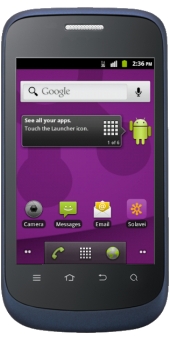
Solavei ZTE Origin Manual User Guide
Solavei ZTE Origin Manual User Guide and Operating Instruction - This Solavie ZTE Origin user manual is available for FREE at ZTE website, we merely collect the information, we neither affiliated with the author(s), the website and any brand(s) nor responsible for its content and change of content. (Read our disclaimer before you download the document from the website).
Adding a New GPRS/EDGE/3G Connection:
1. Touch the Home Key -> Application -> Settings -> Wireless & networks -> Mobile networks -> Access Point Names.
2. Touch the Menu Key -> New APN.
3. Touch each item to enter the information you get from your service provider.
4. Touch the Menu Key -> Save to complete.
TIP: To set the APN to default settings, touch the Menu Key -> Reset to default.
1. Touch the Menu Key -> Import/Export from the Contacts Screen.
2. Choose Import from SIM card or Export to SIM card. Your phone will automatically display the contacts.
3. Tick the contacts you want to import or export. Or, just touch the Menu Key -> Select all.
4. Touch OK.
Removing the Battery, SIM and microSD Card:
1. Make sure that your mobile phone is off.
2. Remove the back cover.
3. Lift the battery up and out.
4. Slide the SIM card out.
5. Slide the microSD card out.
Download Solavie ZTE Origin user guide english.PDF (1.36 MB)

ZTE Warp Sequent Manual User Guide
ZTE Warp Sequent Manual User Guide and Operating Instruction - This ZTE Warp Sequent user manual is available for FREE at ZTE website, we merely collect the information, we neither affiliated with the author(s), the website and any brand(s) nor responsible for its content and change of content. (Read our disclaimer before you download the document from the website).
Solution:
1. Touch the Home Key -> Menu Key -> System settings -> Language & input -> Language.
2. Select the language you need.
Get Notified of Open Networks
1. Touch the Home Key -> Menu Key -> System settings -> Wi-Fi.
2. Slide the Wi-Fi switch to the ONposition.
3. Touch the Menu Key -> Advanced.
4. Tick the Network notification check box.
How to Edit Quick Response to Rejected Callers?
Solution:
1. Touch the Home Key -> Menu Key -> System settings -> Call -> Quick responses.
2. Touch the text message to edit it
How to Protecting Your Phone With Encryption?
Solution:
* Before turning on encryption, prepare as follows:
1. Set a lock screen PIN or password.
2. Charge the battery.
3. Keep the phone connected to the charger.
4. Schedule an hour or more for the encryption process: you must not interrupt it or you will lose some or all of your data.
* When you’re ready to turn on encryption:
1. Touch the Home Key -> Menu Key -> System settings -> Security -> Encrypt phone.
2. Read the information about encryption carefully.
The Encrypt phonebutton is dimmed if your battery’s not charged or your phone’s not plugged in.
If you change your mind about encrypting your phone, touch the Back Key.
WARNING!If you interrupt the encryption process, you will lose data.
3. Touch Encrypt phone.
4. Enter your lock screen PIN or password and touch Next.
5. Touch Encrypt phone again.
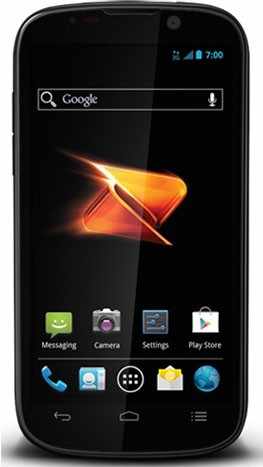
To know more about operating instruction and troubleshooting tips of ZTE Warp Sequent, you can download this ZTE Warp Sequent user manual.
Download ZTE Warp Sequent User Manual.PDF (1.82 MB)
Tuesday, November 6, 2012
ZTE Blade III quick manual/user guide
ZTE Blade III quick manual/user guide Download Pdf Instruction Setting - Now ZTE Blade III available user manual / guide for you download link from ZTE below, before you download, read a little review ZTE Blade III.
ZTE Blade 3 finally revealed. it is as reported by PhoneArena. Full-featured 3 which is the ZTE Blade Android Smartphone ICS cheaply packaged with a 4-inch WVGA display and will be powered by a Qualcomm processor speed of 1 GHz and 512 MB RAM memory loaded.

For business to save the data, the device is equipped with an internal memory capacity of 4 GB which can be expanded via microSD card up to 32 GB.Sensor camera with 5 megapixel resolution has been pinned on the smartphone ZTE Blade III as a tool pengabadi image.
This is one of the tips in the guide, and his next can be downloaded at the link below
How to Setting Up for the First Time ?
When you first power on your phone after you purchase it or reset it to factory settings (see Settings – Personal – Backup and Reset), you need to do some settings before using it.
1. Touch the language field to select the language you want to use and then touch Start.
2. Set the date, time, and time zone, or use date and time data provided by the network. Then touch Next.
3. Touch Get an account to create a Google account or touch Sign in to sign in to your account. You can also touch Not now to set up an account later.
4. Configure the Google location options and touch Next.
5. Enter your name which the phone uses to personalize some apps and touch Next
6. You will be prompted to accept the terms of Google service. Touch Next to continue.
7. Touch Finish to complete the setup.
NOTE: If the SIM is not installed, the phone would prompt you to connect to a Wi-Fi network before asking you to sign in to a Google account.
Locking/Unlocking the Screen and Keys?
Your phone allows you to quickly lock the screen and keys when not in use and to turn the screen back on and unlock it when you need.
To lock the screen and keys:
To immediately turn the screen off and lock the keys, press the
Power Key.
NOTE: To save battery power, the phone automatically turns off the screen after a certain period of time when you leave it idle. You will still be able to receive messages and calls while the phone screen is off.
To unlock the screen and keys:
1. Press the Power Key to turn the screen on.
2. Touch and hold at the center of the screen
Changing the System Language
1. Touch the Home Key > Menu Key > System settings > Language & input > Language.
2. Select the language you need.Setting the Date and Time
1. Touch the Home Key > Menu Key > System settings > Date & time.
2. Clear the Automatic date & time and Automatic time zone check boxes if you want to set the date, time and time zone by yourself.
3. Set the date, time, time zone, and date/time format.Changing Ringtone and Notification Sound
You can customize the default ringtone for incoming calls and default notification sound quickly.
1. Touch the Home Key > Menu Key > Personalization.
2. Touch Phone ringtone or Notification ringtone.
3. Scroll through the ringtone list and select the ringtone you want to use.
4. Touch OK.
Here you are the User Guide PDF Manual Copy / for ZTE Blade III directly from ZTE official website. ZTE Blade III user guide in English, Download from the Links below
[Download ZTE Blade III quick manual/user guide]
Subscribe to:
Posts (Atom)