Showing posts with label Samsung. Show all posts
Showing posts with label Samsung. Show all posts
Thursday, November 29, 2012
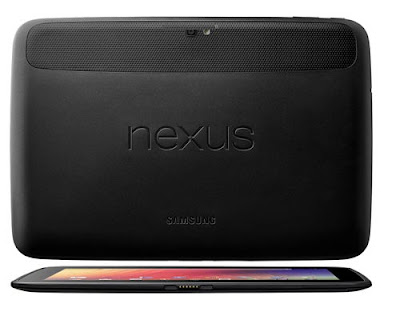
Samsung Google Nexus 10 quick manual/user guide
Samsung Google Nexus 10 quick manual/user guide - Samsung Google Nexus OS 10 comes using the latest Android 4.2 Jelly Bean. Google Nexus 10 has a touch screen measuring 10.1 inches with a very high resolution of 2560 x 1600 pixels (300ppi) resolution Retina screen beats Apple's new iPad that only has a resolution of 2048 x 1536 (264ppi).
Samsung Google Nexus 10 is manufactured by Samsung, and is powered by the Samsung Exynos chip 5 with a dual core 1.7GHz processor and 2GB of RAM. Nexus 10 is also equipped with a 5 megapixel main camera, 1.9 megapixel front camera, Wi-Fi, NFC and 9000mAh capacity battery.
Google Nexus 10 will be available in two versions namely 16GB and 32GB.
Google, Android, Gmail, Google Maps, Chrome, Nexus 10, Google Play, YouTube, Google+, and other trademarks are property of Google Inc. A list of Google trademarks is available at http://www.google.com/permissions/guidelines.html. Samsung and the Samsung logo are trademarks of Samsung. All other marks and trademarks are properties of their respective owners. The content of this guidebook may differ in some details from the product or its software. For best results, make sure you’re running the latest Android system update. To check, go to Settings > System > About tablet > System updates. All information in this guidebook is subject to change without notice.. For online help and support, visit support.google.com/nexus.
Why use a Google Account?
A Google Account lets you organize and access your personal information from any computer or mobile device:
1.Use Google Play. Google Play brings together all your favorite content in one place: movies, TV shows, books, music, magazines, apps, and more. When you sign in with your Google Account, you can reach any of this content from any of your devices – as long as you have a network connection. You can also shop for more in the Google Play store.
2.Synchronize and back up everything. Whether you draft an email, add an event to your calendar, or add a friend’s address, your work gets backed up continuously by Google and synchronized with any computer where you use the same Google Account.
3.Access from anywhere. Check your latest calendar, email, text messages, or social stream, no matter what computer or mobile device you’re using.
4.Keep your stuff secure and available. Google works round the clock to protect your personal data from unauthorized access and to ensure that you get it when you need it, wherever you need it.
5.Simplify shopping. You can connect your Google account with Google Wallet, which makes it easy to purchase music, books, apps, and more on Google Play and other online stores.
6.Use other Google services. Your Google Account also lets you take full advantage of other Google apps and services that you may want to use, such as Gmail, Google Maps, Navigation, Google Play, YouTube, Google Talk, Messaging, and more.
Use & customize the lock screen
You can add widgets to the top of the lock screen and swipe between them. Lock screen widgets let you scan recent Gmail messages, Calendar entries, and other app content without unlocking your screen.
To set or change the type of lock, see Set screen lock.
Add a widget to the lock screen
1. In portrait mode, swipe right across the upper part of the screen until you see the Plus icon. In landscape mode, swipe right from the left side of your screen
2. Touch the Plus icon. If prompted, enter your PIN, pattern, or password. A set of the available widgets appears. Apps that support lock screen widgets can add their own widgets to this set.
3. Touch the widget you want to add. You can add up to five widgets to your lock screen. To move between them, swipe across the top of the screen in portrait mode, or across the left side of the screen in landscape mode.
To Read Full Samsung Google Nexus 10 quick manual/user guide, you can download it below.

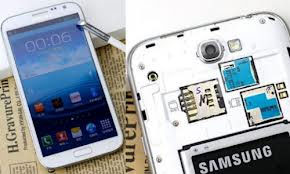
Samsung Galaxy Note II (2) User Manual
Samsung Galaxy Note II (2) quick manual/user guide GT N7100 Troubleshooting - Available features and additional services may vary by device, software, or service provider. Applications and their functions may vary by country, region, or hardware specifications. Samsung is not liable for performance issues caused by applications from any provider other than Samsung.
Samsung is not liable for performance issues or incompatibilities caused by edited registry settings or modified operating system software. Attempting to customise the operating system may cause the device or applications to work improperly.
This device provides high quality mobile communication and entertainment using Samsung’s high standards and technological expertise. This user manual is specially designed to detail the device’s functions and features. Please read this manual before using the device to ensure safe and proper use. Descriptions are based on the device’s default settings. Images and screenshots may differ in appearance from the actual product.
This device provides high quality mobile communication and entertainment using Samsung’s high standards and technological expertise. This user manual is specially designed to detail the device’s functions and features. Please read this manual before using the device to ensure safe and proper use. Descriptions are based on the device’s default settings. Images and screenshots may differ in appearance from the actual product.
Content may differ from the final product, or from software provided by service providers or carriers, and is subject to change without prior notice. For the latest version of the manual, refer to the Samsung website, www.samsung.com.
Software, sound sources, wallpapers, images, and other media provided with this device are licensed for limited use. Extracting and using these materials for commercial or other purposes is an infringement of copyright laws. Users are entirely responsible for illegal use of media.
You may incur additional charges for data services, such as messaging, uploading and downloading, auto-syncing, or using location services. To avoid additional charges, select an appropriate data tariff plan. For details, contact your service provider.
Default applications that come with the device are subject to updates and may no longer be supported without prior notice. If you have questions about an application provided with the device, contact a Samsung Service Centre. For user-installed applications, contact service providers.
Modifying the device’s operating system or installing softwares from unofficial sources may result in device malfunctions and data corruption or loss. These actions are violations of your Samsung licence agreement and will void your warranty.
For More Information, You Can Download This User Manual, Read This anda Enjoy!
And we provide three User Manual for this Note 2 N7100: English, German, and Spanish.
Download User Manual of Samsung Galaxy Note II GT-N7100 | Language: English | Page: 140 | PDF Size: 8.39MB
Download User Manual of Samsung Galaxy Note II GT-N7100 | Language: German | Page: 140 | PDF Size: 27.82MB
Download User Manual of Samsung Galaxy Note II GT-N7100 | Language: Spanish | Page: 140 | PDF Size: 26.38MB
Tuesday, November 27, 2012
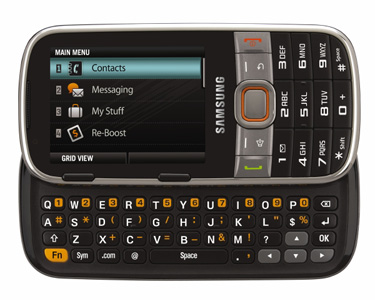
Samsung Array Manual User Guide
Samsung Array Manual User Guide & Operating Instruction - To know more about operating instruction and troubleshooting tips of Samsung Array mobile phone, you can download this Samsung Array user manual / guide. This manual gives you any references how to operate Samsung Array mobile phone correctly. To prevent damage to your product or injury to yourself or to others, please read this Samsung Array owner manual before using this device. This Samsung Array user manual is available for FREE at Boost Mobile official website, PDFuu.com merely collect the information, we neither affiliated with the author(s), the website and any brand(s) nor responsible for its content and change of content. (Read our disclaimer before you download the document from the website).
1. Press MENU/OK key -> Settings & Tools -> Settings -> Others -> Language.
2. Highlight Englishor Españoland Press MENU/OK key.
How to change the font size?
Solution:
1. Press -> Settings & Tools -> Settings -> Display -> Font Size.
2. Select Dial Font Size and then select Small or Large.
3. Select Menu Font Size and then select Small, Medium, or Large
How to change the backlight control?
Solution:
1. Press MENU -> Settings & Tools -> Settings -> Display -> Backlight Control.
2. Select Backlight Dim, Backlight Offor Java Backlight.
3. Highlight a time setting and press MENU/OK.''
This Samsung Array owners manual is available in PDF file format with 120 pages. The size of this 120-pages Samsung Array user guide PDF file is 2.44 MB. It comes in English.
[Download User Manual Samsung Array]
Sunday, November 11, 2012
Samsung Star Deluxe Duos quick manual/user guide & Full Spec
Samsung Star Deluxe Duos quick manual/user guide & Full Spec Download Pdf Instruction Support Setting Troubleshooting - Samsung Star Deluxe Duos not available user manual / guide download link from Samsung, before you download, please waiting for realesed anda visit here again. read a little review Samsung Star Deluxe Duos.
Samsung Star Deluxe Duos S5292 is a touchscreen phone with dual SIM GSM + GSM. Samsung Star Deluxe Duos comes with a touch screen measuring 3.5 inches with a resolution of 320 x 480 pixels (165ppi).
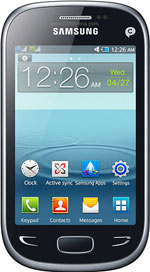
Samsung Star Deluxe Duos also equipped with a 312MHz processor, 3.2 megapixel camera, GPRS / EDGE, WiFi, Bluetooth, MP3/MP4 player, microSD slot up to 32GB, and battery capacity of 1000mAh.
Samsung Star Deluxe Duos Full Spec :
=======================================================================
GENERAL
Network Dual SIM GSM 850 / 900 / 1800 / 1900MHz
Announced 2012, 4Q
Processor CPU: 312MHz
SAR Rating
COLOR
Available Black, White, Brown
SIZE
Dimensions (mm) 113 x 61.9 x 11.8
Weight (g) 109
DISPLAY Type TFT touchscreen, 256K colors
Size 320 x 480 pixels, 3.5 inches (165 ppi pixel density)
Lines 0
Menu Touchscreen
DESIGN
Type Candybar
Antenna Fixed Internal
KEYS Navigation Touchscreen
QWERTY No
Soft
Other
Lighting
MEMORY
Phonebook
Internal (MB)
Expansion microSD up to 32GB
BATTERY
Type Standard battery, Li-Ion 1000mAh
Stand-by (hrs) Up to 440 hours
TalkTime(min) up to 900 minutes
RINGTONES
Polyphonic
Customization Yes
AUDIO
Format MP3
MP3 Player Yes
Voice
FM Radio No
A2DP Yes
VIDEO
Format MP4/3GP
Recorder Yes
TV Null
ENTERTAINMENT
Games
MESSAGING
SMS Yes
Total SMS
MMS Yes
EMS No
Email Yes
IM
Push-To-Talk
CONNECTIVITY
HSDPA Null
EDGE Yes
Bluetooth Yes, v3.0
3G No
GPRS Yes
Infrared (IrDA) No
USB Port Yes
WIFI/WLAN Yes, Wi-Fi 802.11 b/g/n
Data Cable
Data Modem
GPS No
SOFTWARE
Java (J2ME) No
WAP Yes Ver 2.0
Platform OS Proprietary
Browser WAP
Predictive Text Entry
Speech Codes
PIM Application
Others Application SNS Integration
PERSONAL
Themes No Info.
Caller ID Yes
Profile ID Yes
CAMERA
Lens Type CMOS, 3.2 Megapixel
Digital zoom
Max. Resolution 2048x1536 pixels
Flash No
Night Mode No
Multi Shot
Frame Types
Extra Features
Photo Format JPG
Front Camera
=======================================================================
Download Samsung Star Deluxe Duos quick manual/user guide :
The Samsung Star Deluxe Duos User manual or user guide is not yet available online for this time, it will be available here after the phone released to the market. back here later for check avaliable the user guide availability. Thank's You
Saturday, November 10, 2012
Samsung Galaxy S4 Release Date, Specs & Manual Guide
Samsung Galaxy S4 Release Date, Specs & quick manual/user guide Download Pdf Instruction Support Setting Troubleshooting - Samsung Galaxy S3 has reaped success, which became the best-selling smartphone in 2012. The South Korean company is also ready to continue the success of Galaxy S product line by launching a new device, which is still called "Project A".
Slash Gear Page called, "Project J" that was to become the Galaxy S4, and ready for release April 2013. Galaxy S4 is ready to proceed on the baton to become the best-selling smartphone.
Smartphones will be sized 5-inch screen with a resolution of 1080p. Samsung rumored to be complementary with the Galaxy S4 quad-core processor. 2 GB of RAM, and a 13 MP camera.
Meanwhile, TechRadar called, "Project A" previously planned to be revealed at the International Consumer Electronic Show 2013, next month.

Not only Galaxy S4
Not only Galaxy S4 is ready to bring surprises. Samsung is ready to release a cheaper version called Galaxy Note 2. This device will be prepared for the European market.
However, Slash Gear mentioned, cheaper version Note 2 shall be accompanied by a stylus and no AMOLED screen.
In addition, Samsung will release a 13.3-inch tablet with QWERTY keyboard docking. This product will be present to compete with products made by ASUS Transformer.
Samsung Galaxy S 4 Spec
=======================================================================
Generals Date Announced December 10, 2012 (4th Quarter)
Status Coming Soon
Network Technology GSM 850 / 900 / 1800 / 1900
HSDPA
Processor/ Memory
CPU 1.8 GHz
RAM 2 GB
Internal Storage -
External Memory MicroSd (Up to 64GB)
GPU Mali 450
Chipset Exynos
Body
Dimensions (mm) -
Weight (g) -
Available colours -
QWERTY Keypad No
Display
Screen Size, Resolution 4.8 inches,1920 x 1200 pixel
Screen Color HD super AMOLED plus
Design Candybar
Screen Protection -
Multitouch No
Software
Platform / OS Android OS, v4.1 (Jelly Bean)
Java (J2ME) No
Messaging SMS
Others -
Sound
Alert -
3.5mm Jack No
Extra Feature -
Battery
Battery Type/Capacity NULL
Stand-by -
TalkTime -
Entertainment
FM Radio No
TV Receiver No
Others -
Connectivity
HSPDA Null
WLAN No
EDGE No
GPRS
WiFi Hot Spot No
GPS No
NFC Support No
Bluetooth No
USB Port No
Sensor -
Camera Specifications
Capacity 12 Megapixel
Max. Resolution -
Flash No
Video Recording -
Secondary Camera No
Extra Features -
=======================================================================
Samsung Galaxy S4 quick manual/user guide
The Samsung Galaxy S4 User manual or user guide is not yet available online for this time, it will be available here after the phone released to the market. back here later for check avaliable the user guide availability. Thank's you.
Friday, November 9, 2012
Samsung Galaxy Premier i9260 quick manual/user guide & Full Spec
Samsung Galaxy Premier i9260 quick manual/user guide & Full Spec Download Pdf Instruction Support Setting Troubleshooting - Samsung Galaxy I9260 Premier is basically a Galaxy Nexus dressed as Galaxy S III. This mobile phone will be launched first in Ukraine at the end of this year at a price of $ 680.
There's a pretty lively discussion about this phone before launch. It seems that the phone is quite impressive by combining the sleek look of the Samsung Galaxy SIII, while borrowing spec-sheet of the Galaxy Nexus. This phone also had been rumored as Galaxy Nexus 2. Premier Galaxy uses the Android OS 4.1 and Samsung's TouchWiz UI.

Equipped with 1gb ram memory, and no role in 8gb and 16gb versions of internal memory. This memory can be increased using microSD card, with built-in bluetooth 4. 0, wi-fi, GPS, NFC and battery 2. 100 mah. samsung though not officially informed, but leak, the phone is using ti omap4470 processor with dual-core arm 1. 5GHz cortex a9 cpu and PowerVR GPU sgx544.
Unlike the armed galaxy s3 quad-core processor, galaxy i9620 is powered processor premiere of texas instruments imap 4470 with a speed of 1, 5GHz dual-core is supported by 1gb ram memory. glance, the specifications premiere i9620 galaxy very similar to s3 samsung galaxy mini.
Not only that, but also equip samsung i9620 galaxy premiere with a variety of features like best pictures, stay smart, direct call, a pop-ip play, s voice and s beam. This premier galaxy i9620 using android operating system 4. One jelly bean and includes support 4g lte, wifi, bluetooth and a-gps.
Samsung Galaxy Premier i9260 Full Spec :
=======================================================================
GENERAL
Network GSM 850 / 900 / 1800 / 1900
3G : HSDPA 850 / 900 / 1900 / 2100
4G : LTE
Announced 2012, 4Q
Processor CPU: Dual-core 1.5 GHz, GPU: PowerVR SGX544
SAR Rating
COLOR
Available White
SIZE
Dimensions (mm) 134.2 x 68 x 9
Weight (g) 130
DISPLAY
Type Super AMOLED capacitive touchscreen, 16M colors
Size 720 x 1280 pixels, 4.65 inches (316 ppi pixel density)
Lines 0
Menu Touchscreen
DESIGN
Type Candybar
Antenna Fixed Internal
KEYS Navigation Touchscreen : multitouch
QWERTY No
MEMORY
Phonebook
Internal (MB) 8/16 GB storage, 1 GB RAM
Expansion microSD, up to 32 GB
BATTERY
Type Standard battery, Li-Ion 2100 mAh
Stand-by (hrs)
TalkTime(min)
RINGTONES Polyphonic
Customization Yes
AUDIO
Format MP3/WAV/eAAC+/AC3/FLAC
MP3 Player Yes
Voice
FM Radio No
A2DP Yes
VIDEO
Format MP4/DivX/XviD/WMV/H.264/H.263
Recorder Yes, 1080p@30fps
TV Null
ENTERTAINMENT
Games Yes, Downloadable
MESSAGING
SMS Yes
Total SMS
MMS Yes
EMS Yes
Email Yes
IM
Push-To-Talk
CONNECTIVITY
HSDPA Yes, HSDPA, 21.1 Mbps; HSUPA, 5.76 Mbps; LTE, Cat3, 50 Mbps UL, 100 Mbps DL
EDGE Yes
Bluetooth Yes, v4.0 with A2DP, EDR
3G Yes
GPRS Yes
Infrared (IrDA) No
USB Port Yes
WIFI/WLAN Yes, Wi-Fi 802.11 a/b/g/n, DLNA, Wi-Fi Direct, Wi-Fi hotspot
Data Cable Yes
Data Modem
GPS Yes
SOFTWARE
Java (J2ME) No
WAP No Info
Platform OS Android OS - v4.1 Jelly Bean
Browser HTML
Predictive Text Entry
Speech Codes
PIM Application
Others Application Google Apps
PERSONAL
Themes Yes
Caller ID Yes
Profile ID Yes
CAMERA
Lens Type CMOS, 8.0 Megapixel
Digital zoom
Max. Resolution 3264x2448 pixels
Flash Yes
Night Mode No
Multi Shot
Frame Types
Extra Features Autofocus, Geo-tagging, touch focus, face detection
Photo Format JPG
Front Camera Yes, 1.9 MP
=======================================================================
Download Samsung Galaxy Premier i9260 quick manual/user guide :
The Samsung Galaxy Premier i9260 User manual or user guide is not yet available online for this time, it will be available here after the phone released to the market. back here later for check avaliable the user guide availability. Thank's you
Thursday, November 8, 2012
Samsung Galaxy S WiFi 3.6 quick manual/user guide
Samsung Galaxy S WiFi 3.6 quick manual/user guide Download Pdf Instruction Setting Troubleshooting - Now Samsung Galaxy S WiFi 3.6 available user manual / guide for you download link from Samsung below, before you download, read a little review Samsung Galaxy S WiFi 3.6.

Here you are the User Guide PDF Manual Copy / for Samsung Galaxy S WiFi 3.6 directly from Samsung official website. Samsung Galaxy S WiFi 3.6 user guide in English, Download from the Links below
[Download Samsung Galaxy S WiFi 3.6 quick manual/user guide]
Samsung Galaxy S Advance quick manual/user guide
Samsung Galaxy S Advance quick manual/user guide Download Pdf Instruction Setting Troubleshooting - Now Samsung Galaxy S Advance available user manual / guide for Language ENGLISH, Indonesia and Chinese download link from Sony below, before you download, read a little review Sony Xperia TL LT30at.
This premium smartphone has two options people; black and white, with a length of 123.2 mm, width 63.0 mm, thickness of 9.7 mm and weighs 120 grams. For the screen, has a screen size of 4.0 inches (480 x 800 pixels ~ 233 ppi pixel density) Super AMOLED capacitive technology touchscreen, 16M colors with the operation using the touchscreen.
In addition to using taouchsreen operation, there are two touch-sensitive buttons, the menu and back, as well as the physical home button. On the left side there is also a button to adjust the volume, to the right serves as the power button.
For memory there is an internal memory of 8/16 GB storage, 768 MB RAM and 2 GB ROM, if deemed still be added ekstrenal memory through micro SD up to 32GB. If you want to capture an important moment, there is also a 5.0 Megapixels camera with LED flash feature, available Auto Focus, Face Detection, Smile Detection and much more.
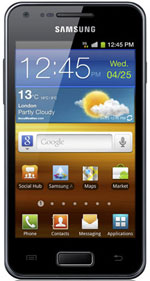
In addition to using taouchsreen operation, there are two touch-sensitive buttons, the menu and back, as well as the physical home button. On the left side there is also a button to adjust the volume, to the right serves as the power button.
For memory there is an internal memory of 8/16 GB storage, 768 MB RAM and 2 GB ROM, if deemed still be added ekstrenal memory through micro SD up to 32GB. If you want to capture an important moment, there is also a 5.0 Megapixels camera with LED flash feature, available Auto Focus, Face Detection, Smile Detection and much more.
This is one of the tips in the guide, and his next can be downloaded at the link below
How To Format the memory card ?
Formatting your memory card on a PC may cause incompatibilities with your device. Format the memory card only on the device.
In Idle mode, select Applications→ Settings→ Storage→Unmount SD card→ OK→ Format SD card→ Format SD card→ Erase everything.
Note: Before formatting the memory card, remember to make backup copies of all important data stored on your device. The manufacturer’s warranty does not cover loss of data resulting from user actions.
Wi-Fi
Learn to use your device’s wireless networking capabilities to activate and connect to any wireless local area network (WLAN) compatible with the IEEE 802.11 b/g/n standards.You can connect to the internet or other network devices anywhere an access point or wireless hotspot is available.
Your device uses a non-harmonised frequency and is intended for use in all European countries. The WLAN can be operated in the EU without restriction indoors, but cannot be operated outdoors.
› Activate the Wi-Fi feature
In Idle mode, open the application list and select Settings→Wireless and network→ Wi-Fi settings→ Wi-Fi.
The Wi-Fi feature running in the background will consume battery power. To preserve battery power,
activate the feature only when needed.
› Find and connect to a Wi-Fi AP
1 In Idle mode, open the application list and select Settings→ Wireless and network→ Wi-Fi settings.
The device will automatically search for available Wi-Fi APs.
2 Select a network under Wi-Fi networks.
3 Enter a password for the network (if necessary).
4 Select Connect.
› Add a Wi-Fi AP manually
1 In Idle mode, open the application list and select Settings→ Wireless and network→ Wi-Fi settings→ Add Wi-Fi network.
2 Enter the SSID for the network and select the security type.
3 Set the security settings depending on the selected security type.
4 Select Save.
› Connect to a Wi-Fi AP using a Wi-Fi Protected Setup (WPS)
Using WPS, you can connect to a secured network. To connect to a Wi-Fi AP with a WPS button,
1 In Idle mode, open the application list and select Settings→ Wireless and network→ Wi-Fi settings.
2 Select WPS button connection.
3 Press a WPS button on the access point within 2 minutes.
To connect to a Wi-Fi AP with a WPS PIN,
To connect to a Wi-Fi AP with a WPS PIN,
1 In Idle mode, open the application list and select Settings→ Wireless and network→ Wi-Fi settings.
2 Select a network indicated by the WPS icon and select WPS PIN.
3 On the access point, enter the PIN and press the start button.
Wi-Fi Direct
Learn to use the Wi-Fi Direct feature to connect two devices via Wi-Fi without requiring an access point.
› Connect your device to another device
1 In Idle mode, open the application list and select Settings→ Wireless and network→ Wi-Fi Direct settings→ OK.
2 Select OK (if necessary).
3 Select Wi-Fi Direct.
4 Press [ ] → Scan.
5 Select a device and then select Connect. When the owner of the other device accepts the connection, the devices are connected.
› Send data via Wi-Fi
1 Select a file or item, such as a memo, media file, or web address, from an appropriate application or My files.
2 Select an option for sending data via Wi-Fi.The method for selecting an option may vary by data type.
3 Search for and select another device.
› Receive data via Wi-Fi
When prompted, select OK to confirm that you are willing to receive data. Received data is saved to the ShareViaWifi folder.
AllShare
Learn to use the Digital Living Network Alliance (DLNA) service that enables you to share media files between DLNAenabled devices in your home over Wi-Fi.Here you are the User Guide PDF Manual Copy / for Acer CloudMobile S500 directly from Acer official website. Acer CloudMobile S500 user guide in English, Download from the Links below
Download User Manual ENGLISH 6.19 MB
Download User Manual SIMPLIFIED CHINESE(S.E Asia)7.52 MB
Download User Manual INDONESIAN 7.16 MB
Wednesday, November 7, 2012
Samsung Galaxy Note 10.1 quick manual/user guide
Samsung Galaxy Note 10.1 quick manual/user guide Download Pdf Instruction Setting - Now Samsung Galaxy Note 10.1 available user manual / guide for you download link from Samsung below, before you download, read a little review Samsung Galaxy Note 10.1.

Samsung Galaxy Note tablet PC 10.1 is the latest issued by the leaders of the world's leading gadget market is Samsung. Her presence is awaited by gadget mania in the country, with a myriad of features that should be tested by you.
Samsung's latest Galaxy is designed to provide the latest experience with a touch of style stylish samsung, can help users in expressing it. All the features and software have also been implanted in HP Samsung Galaxy Note N8000 10.1.
Galaxy Note 10.1 comes with the operating system Android 4.0 Ice Cream Sandwich, as well as quad-core Exynos processor embedded 1.4 GHz, 2 GB RAM, 1.9 MP front camera, 5 MP rear camera, and a 10.1-inch WXGA LCD display. By relying nicknamed S Pen stylus that can perform a variety of functions makes it more curious to wear it
Here you are the User Guide PDF Manual Copy / for Samsung Galaxy Note 10.1 directly from Samsung official website. Samsung Galaxy Note 10.1 user guide in English, Download from the Links below
[Download Samsung Galaxy Note 10.1 quick manual/user guide]
Tuesday, November 6, 2012
Samsung S3570 Ch@t 357 quick manual/user guide
Samsung S3570 Ch@t 357 quick manual/user guide Download Pdf Instruction Setting - Now Samsung S3570 Ch@t 357 available user manual / guide for you download link from Samsung below, before you download, read a little review Samsung S3570 Ch@t 357.
Samsung Chat 357 has features that are complete for the kind of non-smart phones. "Feature Dual SIM, QWERTY keyboard, optical trackpad, a 2.4-inch screen with a resolution of 320 x 240 pixels, 2 MP camera, GPRS / EDGE and WiFi,"
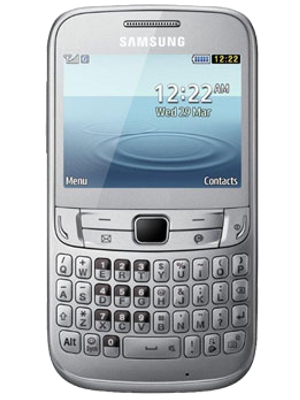
Mobile networks are supported 2G Network GSM 850/900/1800/1900 and equipped with a memory card that can be upgraded up to 32 GB with 34 MB of internal memory. "Samsung Chat 357 is also supported 208 MHz CPU that comes with messaging facilities like SMS, MMS, Email, IM and games and FM radio,"
This is one of the tips in the guide, and his next can be downloaded at the link below
How ToChange your ringtone?
1. In Menu mode, select Settings → Sound profiles.
2. Scroll to the profile you are using.
3. Press <Edit> → Voice call ringtone.
4. Select a memory location (if necessary).
5. Select a ringtone.
To switch to another profile, select it from the list.
How To Uses the camera ?
To capture photos
1. In Menu mode, select Camera to turn on the camera.
2. Aim the lens at the subject and make any adjustments.
3. Press the trackpad to take a photo. The photo is saved automatically.
To view photos
In Menu mode, select My files → Images → a photo file.
To record videos
1. In Menu mode, select Camera to turn on the camera.
2. Press <Options> → Camcorder to switch to Recording mode.
3. Aim the lens at the subject and make any adjustments.
4. Press the trackpad to start recording.
5. Press <Stop> to stop recording. The video is saved automatically.
To view videos
In Menu mode, select My files → Videos → a video file.
Here you are the User Guide PDF Manual Copy / for Samsung S3570 Ch@t 357 directly from Samsung official website. Samsung S3570 Ch@t 357 user guide in English, Download from the Links below
[Download Samsung S3570 Ch@t 357 quick manual/user guide]
Sunday, November 4, 2012
Samsung Galaxy Ace Duos quick manual/user guide
Samsung Galaxy Ace Duos quick manual/user guide Download Pdf Instruction Setting - Samsung Galaxy Ace Duos quick manual/user guide & Troubleshooting free pdf ebook - How to Turn your device on and off ? To turn on your device, press and hold the Power key. If you turn on your device for the first time, follow the on-screen instructions to set up your device. To turn off your device, press and hold the Power key and then select Power off→ OK.
- Follow all posted warnings and directions from authorised personnel in areas where the use of wireless devices is restricted, such as aeroplanes and hospitals.
- To use your device's non-network services only, switch to Flight mode. Press

- Please read all safety precautions and this manual carefully before using your device to ensure safe and proper use.
- The descriptions in this manual are based on the default settings of your device.
- Images and screenshots used in this user manual may differ in appearance from the actual product.
- Content in this user manual may differ from the product, or from software provided by service providers or carriers, and is subject to change without prior notice. Refer to www.samsung.com for the latest version of the user manual.
- Available features and additional services may vary by device, software, or service provider.
- Formatting and delivery of this user manual is based on Google Android operating systems and may vary
- depending on the user’s operating system.
- Applications and their functions may vary by country, region, or hardware specifications. Samsung is not liable for performance issues caused by third-party applications
- Samsung is not liable for performance issues or incompatibilities caused by edited registry settings or modified operating system software. Attempting to customise the operating system may cause your device or
- applications to work improperly.
- You may upgrade your mobile device’s software by accessing www.samsung.com.
- Software, sound sources, wallpapers, images, and other contents provided in this device are licenced for limited use between Samsung and their respective owners. Extracting and using these materials for commercial or other purposes is an infringement of copyright laws. Samsung is not liable for such copyright infringement by the user.
- Please keep this manual for future reference.
[Download Samsung Galaxy Ace Duos quick manual/user guide]
Samsung Galaxy Camera quick manual/user guide
Samsung Galaxy Camera quick manual/user guide Download Pdf Instruction Setting - Galaxy Camera is trying to offer a good quality camera, combined with the sophisticated style of the Android operating system sounded tempting. So it is not just to take pictures, but also as a medium of entertainment and so on, with a variety of exciting applications are provided.
A wide range of photographic features embedded in Samsung Galaxy Camera to allow a user. There is a photo editing feature called Photo Wizard.
Galaxy Camera using the latest version of Android, dubbed Jelly Bean usual. Display menu or application is very similar to a cell phone or tablet products, although there are some Samsung style customization.

Samsung provides a wide range of applications such as congenital S Planner, S Voice to Instagram. Users can easily make additions to the application through the Android Market app store is also available.
There are three buttons on the side of the screen to navigate back, home or menu. Users who are familiar with the Android operating system would not have difficulty in using the Galaxy Camera.
Once the Galaxy Camera is reversed, then the uniqueness as well as the sophistication of the camera is visible. Samsung provides relief touch screen measuring 4.77 inch Super Clear Touch HD Display with a resolution of 1280x720 pixels as a means of operating the camera.
Ok, Here you are the User Guide PDF Manual Copy / for Samsung Galaxy Camera irectly from Samsung official website. Samsung Galaxy Camera user guide in English, Download from the Links below
[Download Samsung Galaxy Camera quick manual/user guide or Quick Start Guide ]
Saturday, November 3, 2012
Samsung Galaxy Axiom R830 quick manual/user guide
Samsung Galaxy Axiom R830 quick manual/user guide Download Pdf Instruction Setting - This section allows you to quickly start using your Samsung SCH-R830 phone by installing the SIM and microSD cards, installing and charging the battery, activating your service, and setting up your voicemail account.
Understanding this User Manual
The sections of this manual generally follow the features of your phone. A robust index for features begins on page 215. Also included is important safety information that you should know before using your phone. Most of this information is near the back of the guide, beginning on page 178.
Note: Instructions in this manual are based on default settings, and may vary from your phone, depending on the software version on your phone, and any changes to the phone’s Settings.Unless stated otherwise, instructions in this User Manual start with the phone unlocked, at the Home screen. All screen images in this manual are simulated. Actual displays may vary, depending on the software version of your phone and any changes to the phone’s Settings.

How to Installing the Memory Card?
Your device lets you install a microSD (SD) or microSDHC memory card to expand available memory to store images, videos, music, some applications, and data. With the gold contacts facing down, carefully slide the memory card into the slot (as shown), pushing gently until it clicks into place.
This section outlines key features of your phone, including keys, displays, and icons.
Features
- 4.0-inch (800x480 pixel) WVGA full-screen touch screen
- 1.2 Gigahertz Dual-Core Processor
- High Speed Data [4G Long Term Evolution (LTE) Technology, EVDO Rev A Capable Technology, and Wi-Fi Technology]
- Android OS
- Motion and position sensitivity
- Full integration with Google® applications, including Play Store ®, plus pre-loaded applications
- Connections
– USB 2.0 HS
– Wi-Fi 802.11 a/b/g/n
– Portable Wi-Fi Hotspot
– USB Tethering
– Bluetooth 4.0 (For more information, refer to “Bluetooth profiles” on page 137.)
- Messaging Services (with on-screen QWERTY Keypads)
– Text, Picture, and Video Messaging
– Voice Messaging
– Mobile Instant Messenger (IM)
– Chat
- Full-HTML Browser
- Global Positioning (GPS) Technology
- 5 Megapixel CMOS Camera-Camcorder, rear-facing
- 1.3 Megapixel CMOS Camera-Camcorder, front-facing
- Picture Gallery, supporting JPG, PNG, GIF, and BMP formats
- Music Player, supporting MP3 format
- Video Player, supporting MP4, M4V, 3GP, DIVX, H.263, and H.264 formats
- Speakerphone
- Ringtone and Alert tone support for MP3, AAC, WMA, OGG, QCP, EVRC, MIDI, WAV, and AMR formats
- Support for microSD™ and microSDHC™ Memory Cards (up to 32 GB capacity) (A microSD Memory Card is included with your phone.)
[Download Samsung Galaxy Axiom R830 quick manual/user guide]
Samsung Galaxy Stratosphere II I415 quick manual/user guide
Samsung Galaxy Stratosphere II I415 quick manual/user guide Download Pdf Instruction Setting - This section helps you to quickly start using your phone. Understanding this User Manual > The sections of this manual generally follow the features of your phone. A robust index for features begins on page 175. Also included is important safety information beginning on page 143, that you should know before using your phone. This manual gives navigation instructions according to the default settings. If you select other settings, navigation steps may be different. Unless otherwise specified, all instructions in this manual assume that you are starting from the Home screen. To get to the Home screen, you may need to unlock the phone. For more information, see “Securing Your Phone” on page 15.
Here you are the User Guide PDF Manual Copy / for Samsung Galaxy Stratosphere II I415 irectly from Samsung official website. Samsung Galaxy Stratosphere II I415 user guide in English, Download from the Links below.

Note: Instructions in this manual are based on default settings, and may vary from your phone, depending on the software version on your phone, and any changes to the phone’s Settings. Unless stated otherwise, instructions in this User Manual start with the phone unlocked, at the Home screen. All screen images in this manual are simulated. Actual displays may vary, depending on the software version of your phone and any
changes to the phone’s Settings.
[Download Samsung Galaxy Stratosphere II I415 quick manual/user guide]
Friday, November 2, 2012
Samsung Galaxy Chat quick manual/user guide
Samsung Galaxy Chat quick manual/user guide Download Pdf Instruction Setting - This latest Android smartphone running on Ice Cream Sandwich operating system tries to offer social media applications as the main feature. His performance was good to look at as it is still using Touchwiz user interface style. Equipped with a 3.0-inch screen size that was not impressive enough as it is only capable of displaying 133 colors display ppi density can be ascertained when will not be able to display colors with sharp and accurate.
Samsung Galaxy Chat was introduced in July 2012 brings the design unlike other Samsung Android smarphone that carries even carry the Full Touchscreen QWERTY physical keyboard. Whereas in the past Samsung has successfully launched the Samsung Galaxy S3 now they are trying their luck by releasing a special phone that serves as a short messaging device. Samsung is well known because most understand the market conditions for some pretty troublesome when the touch screen should be made to write messages quickly. It is certain that Samsung tried to shift the dominance blackberry known for its QWERTY design with the Samsung Galaxy Chat spawn.
If we look at his picture may seem thick, naturally because of the design that carried Samsung Galaxy Chat ie 11.7 mm thick enough. The device also comes with 4GB of storage memory intermal can be expanded further up to 32GB by adding a microSD slot provided. No need to worry breaking the connection to the internet because it has provided the wifi connectivity that works pretty well. There was also a bluetooth whice can function as a media file trasfer between phones.
Samsung Galaxy Chat was introduced in July 2012 brings the design unlike other Samsung Android smarphone that carries even carry the Full Touchscreen QWERTY physical keyboard. Whereas in the past Samsung has successfully launched the Samsung Galaxy S3 now they are trying their luck by releasing a special phone that serves as a short messaging device. Samsung is well known because most understand the market conditions for some pretty troublesome when the touch screen should be made to write messages quickly. It is certain that Samsung tried to shift the dominance blackberry known for its QWERTY design with the Samsung Galaxy Chat spawn.

Switch to the back we find a 2 MP camera with resolution of 1600 × 1200 pixels, which seems to be a lot of disappointed with the camera catches. The phone is not equipped with a front camera so support 3G HSDPA 900/2100 can only be enabled to do chating be appropriate as the name Samsung Galaxy Chat. The processor is quite fast, just like the Samsung Galaxy other entry level ie 850 MHz.
Here you are the User Guide PDF Manual Copy / for Samsung Galaxy Chat irectly from Samsung official website. Samsung Galaxy Chat user guide in English, Download from the Links below and Search your type..
[Download Samsung Galaxy Chat quick manual/user guide]
Thursday, November 1, 2012
Samsung Galaxy Music Duos quick manual/user guide
Samsung Galaxy Music Duos quick manual/user guide Download - Here you are the User Guide PDF Manual Copy / for Samsung Galaxy Music Duos irectly from Samsung official website. Samsung Galaxy Music Duos user guide in English, Download from the Links below.

[Download Samsung Galaxy Music Duos quick manual/user guide]
Samsung Galaxy S III Mini (3) quick manual/user guide
Samsung Galaxy S3 (III) quick manual/user guide Download Pdf- Here you are the User Guide PDF Manual Copy / for Samsung Galaxy S3 (III) directly from Samsung official website. Samsung Galaxy S3 (III) user guide in English, Download from the Links below.
How to Locking and unlocking the device? When not in use, lock the device to prevent unwanted operation. Pressing the Power button turns off the screen and puts the device into lock mode. The device automatically gets locked if it is not used for a specified period.
To unlock the device, press the Power button or the Home button when the touch screen is turned off, tap anywhere on the screen, and then flick your finger in any direction. You can use motion to unlock the device. On the Home screen, tap Apps→Settings→Lock screen→Screen lock→Motion. To unlock the device with motion, tap and hold a point on the screen, and then tilt the device forwards.
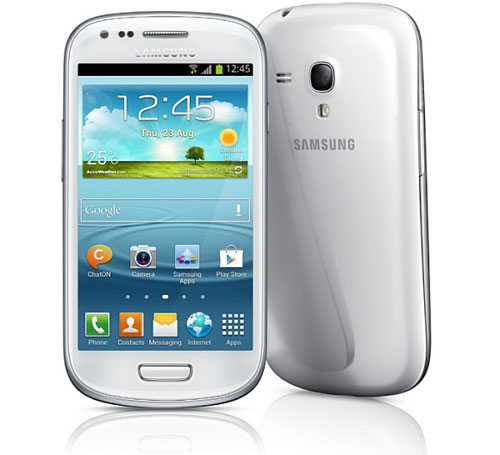
This device provides high quality mobile communication and entertainment using Samsung’s high standards and technological expertise. This user manual is specially designed to detail the device’s functions and features.
Please read this manual before using the device to ensure safe and proper use.
- Descriptions are based on the device’s default settings.
- Images and screenshots may differ in appearance from the actual product.
- Content may differ from the final product, or from software provided by service providers or carriers, and is subject to change without prior notice. For the latest version of the manual, refer to the Samsung website, www.samsung.com.
- Available features and additional services may vary by device, software, or service provider.
- Applications and their functions may vary by country, region, or hardware specifications. Samsung is not liable for performance issues caused by applications from any provider other than Samsung.
- Samsung is not liable for performance issues or incompatibilities caused by edited registry settings or modified operating system software. Attempting to customise the operating system may cause the device or applications to work improperly.
- Software, sound sources, wallpapers, images, and other media provided with this device are licensed for limited use. Extracting and using these materials for commercial or other purposes is an infringement of copyright laws. Users are entirely responsible for illegal use of media.
- You may incur additional charges for data services, such as messaging, uploading and downloading, auto-syncing, or using location services. To avoid additional charges, select an appropriate data tariff plan. For details, contact your service provider.
- Default applications that come with the device are subject to updates and may no longer be supported without prior notice. If you have questions about an application provided with the device, contact a Samsung Service Centre. For user-installed applications, contact service providers.
- Modifying the device’s operating system or installing softwares from unofficial sources may result in device malfunctions and data corruption or loss. These actions are violations of your Samsung licence agreement and will void your warranty.
How to Switching to silent mode:
Use one of the following methods:
- Press and hold the Volume button down until it switches to silent mode.
- Press and hold the Power button, and then tap Mute.
- Open the notifications panel at the top of the screen, and then tap Sound.
Get the device to alert you to various events in silent mode. Press and hold the Power button, and then tap Vibrate.
Notification icons appear on the status bar at the top of the screen to report missed calls, new messages, calendar events, device status, and more. Drag down from the status bar to open the notifications panel. Scroll the list to see additional alerts. To close the notifications panel, drag up the bar that is at the bottom of the screen.
From the notifications panel, you can view your device’s current status and use the following options:
- Wi-Fi: Activate or deactivate the Wi-Fi feature.
- GPS: Activate or deactivate the GPS feature.
- Sound: Activate or deactivate silent mode. You can vibrate or mute your device in silent mode.
- Screen rotation: Allow or prevent the interface from rotating when you rotate the device.
- Bluetooth: Activate or deactivate the Bluetooth feature.
- Mobile data: Activate or deactivate the data connection.
- Blocking mode: Activate or deactivate blocking mode. In blocking mode, the device will
- block notifications. To select which notifications will be blocked, tap Settings→Blocking mode
[Download Samsung Galaxy S3 (III) Mini quick manual/user guide pdf]
Samsung Galaxy Express I437 Manual - Download SGH-I437 User Guide
Download SGH-I437 User Guide - Samsung Galaxy Express I437 Manual - If you are interested in the Samsung SGH-I437 Galaxy Express, the budget 4G device, you can download Samsung SGH-I437 Galaxy Express User Manual and know better devices before making a purchase decision.
If you have purchased AT & T Samsung SGH-I437 Galaxy Express and get it in hand, you'll need this guide the user to understand the settings, menus, icons and status symbols, problem shooting guide, AT & T's pre-loaded applications and other other

Here you are the User Guide PDF Manual Copy / for AT & T Samsung SGH-I437 Galaxy Express directly from Samsung Mobile USA official website. Samsung has issued SGH-I437 user guide in English and Spanish, Choose your favorite language and Download from the Links
Samsung SGH-I437 User Manual :
User Manual (User Manual) (ver.LI6_F3)Language:ENGLISH(North America)File Size:4.84
User Manual (User Manual) (ver.LI6_F3)
Language:SPANISH(North America)File Size:4.94
Subscribe to:
Posts (Atom)