Showing posts with label HTC. Show all posts
Showing posts with label HTC. Show all posts
Thursday, November 29, 2012
HTC DROID DNA quick manual/user guide
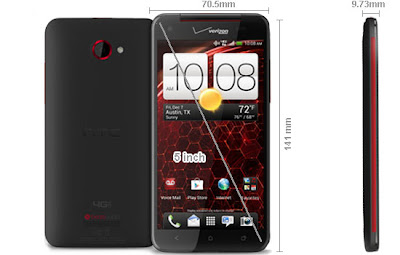
HTC DROID DNA quick manual/user guide - HTC Droid DNA is phablet Android devices launched in the U.S. exclusively through Verizon. HTC Droid DNA comes with a touch screen Super LCD3 measuring 5 inches with a resolution of 1920 x 1080piksel (441ppi) and coated with Corning Gorilla Glass 2.
HTC Droid DNA using Android OS 4.1 Jelly Bean and powered with 1.5GHz quad-core processor and Adreno 320 GPU. HTC Droid DNA has an 8 megapixel main camera and 2.1 megapixel front camera, both of which have the ability to record 1080p HD video.
IMPORTANT CUSTOMER INFORMATION
Please be advised that many services and applications offered through this unique device are provided by various device, operating system, software and application developers (e.g. Google, Motorola, Microsoft, Palm, Research In Motion). If you use, link to or download such a service, or an application such as a non-Verizon Wireless location based GPS-type service, chat room, marketplace or social network from this device, you should carefully review the terms of such service or application. If you use any of these non-Verizon Wireless services or applications, personal information you submit may be read, collected, or used by the service or application provider and/or other users of those forums. Verizon Wireless is not responsible for your use of those applications or information you choose to submit or share with others. Specific terms and conditions, terms of use, and privacy policies apply to those applications and services. Please review carefully any and all terms and conditions applicable to those applications and services including those related to any location-based services for any particular privacy policies, risks or waivers. Your Verizon Wireless Customer Agreement Terms and Conditions and certain other specifically identified terms govern your use of any Verizon Wireless products and services.
Droid DNA by HTC
1. BACK
2. HOME
3. USB connector
4. RECENT APPS
5. VOLUME
6. Proximity sensor
7. Notification LED
8. Tray eject hole
9. SIM card tray
10. POWER
11. 3.5mm headset jack
12. Front camera
Checking battery history
Check how long you've been using Droid DNA by HTC since the last charge. You can also see a chart that shows how long the screen has been on, and how long you've been using connections like the mobile network or Wi-Fi.
1. Slide the Notifications panel open, and then tap .
2. Tap Battery > History.
3. If you've used Droid DNA by HTC for a long time since the last charge, swipe left or right to scale the graph that details battery usage over time.
You can also spread your fingers or pinch to scale the graph.
Ok, So if you to read must complete, you can download this user manual below.
Download Getting Quick Start Getting

Wednesday, November 28, 2012
HTC One X+ (plus) User Manual User Guide
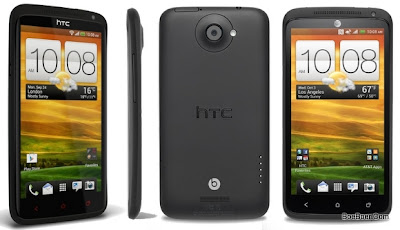
HTC One X+ (plus) User Manual User Guide - This is a quick tutorial on inserting the microSIM card of your mobile carrier to the SIM card slot of HTC One X+: from eject the card try, pull out the card tray, place the SIM, insert the card tray with SIM back to its slot. There is also a tutorial on how you charge the battery of the phone.
1. If the display is off, press the POWER button to turn it back on, then unlock the screen.
2. Press and hold the POWER button for a few seconds.
3. Tap Power off on the options menu.
Setting up HTC One X+ for the first time :
When you switch on HTC One X+ for the first time, you’ll be asked to set it up.
1.Walk through the on-device setup to choose your Internet connection, turn location services on or off, and more.
2. Use our HTC Get Started service to set up your accounts and personalize HTC One X+ from your computer.
The on-device setup shows you the URL of our Get Started site.
When personalizing HTC One X+, you can choose the wallpaper, sounds, apps, home screen layouts, and more. Or just choose a Quick Style that already has all these items preselected for you. You need an HTC Account to save your HTC Get Started setup and to download your settings to HTC One X+.
To find out more, see the Help and FAQ on our HTC Get Started site.
HTC One X+ (plus) Specifications
The battery uses Li-ion Polymer and its embedded inside the phone. The battery is unremovable and has 2100 mAh capacity. There is no official claim on how the duration of the battery can be used on 3G talk time network or standby. Our guess is about 6-7hours talktime, 2-3 days on standby.
Bluetooth uses version 4.0 with A2DP wireless stereo headset profile supports; Wi-Fi uses IEEE 802.11 a/b/g/n, DLAN, and Wi-Fi hotspot supports; and the USB cable uses microUSB (MHL) version 2.0. For the data networks technology this phone would be available in GSM or CDMA depend on your mobile carrier.
It’s about 135 grams weight (along with installed battery), adn about 124.36 x 69.6 x 8.9 mm dimension size (Length x Width x Thickness / Depth). For the body casing, They are two colors availale: Stealth Black and Polar White.
For the User Manual, you can download at the link below, along with HTC One X plus Quick Start Guide.
Download User Manual of HTC One X+ | Language: English | Page: 212 | PDF Size: 3.26MB
Download Quick Start Guide of HTC One X+ | Language: English | Page: 2 | PDF Size: 249KB
HTC Windows Phone 8X Manual User Guide
HTC Windows Phone 8X Manual User Guide and Operating Instruction - This HTC Windows Phone 8X user manual is available for FREE at HTC website, we merely collect the information, we neither affiliated with the author(s), the website and any brand(s) nor responsible for its content and change of content. (Read our disclaimer before you download the document from the website).
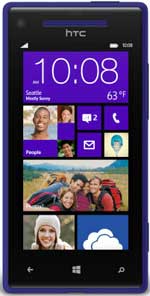
The HTC Windows Phone 8X manual or user guide has been published by HTC at their official website (htc.com). The HTC Windows Phone 8X user guide is written in PDF document format (96-pages, PDF file, 1.47 MB). For you, the owner of HTC Windows Phone 8X smartphone, can download this HTC Windows Phone 8X user manual directly to your HTC Windows Phone 8X smartphone, and read it by using PDF reader application that can be found at Windows 8 App Store. You can also download this HTC Windows Phone 8X owner manual to your desktop PC or laptop, and read it using Adobe Acrobat Reader software. The HTC Windows Phone 8X manual provides complete reference information and instructions about operating the HTC Windows Phone 8X smartphone correctly.
Performing a factory reset via settings:
1. On the Start screen, slide to the left.
2. Tap Settings> about.
3. Tap reset your phone, and then tap yes
How to set update notification and download option?
1. On the Start screen, slide to the left.
2. Tap Settings -> phone update.
3. Select the Tell me when updates are available for my phonecheck box.
4. Choose whether you want to allow automatic downloading of updates if your data settings allow it. If you disable this option, your phone will only download updates over Wi-Fi or when it’s connected to your computer
Phone not responding?
Restart your phone if it doesn’t respond when you touch the screen or press the buttons.
Press and hold the POWER button for at least 12 seconds. Your phone turns off and then turns back on.
How to set up your account?
1. On the Start screen, slide to the left.
2. Tap Settings -> email+accounts.
3. Tap add an account, and then tap the type of account you want to set up.
To know more about operating instruction and troubleshooting tips of HTC Windows Phone 8X smartphone, you can download this HTC Windows Phone 8X user manual.
Download HTC Windows Phone 8X user manual.pdf (1.47 MB)
Tuesday, November 27, 2012
HTC Desire X Manual User Guide
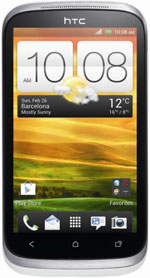
HTC Desire X Manual User Guide and Operating Instruction - This HTC Desire X user manual is available for FREE at HTC website, HTC Desire X merely collect the information, we neither affiliated with the author(s), the website and any brand(s) nor responsible for its content and change of content. (Read our disclaimer before you download the document from the website).
Solution:
1. From the Home screen, tap Apps -> Messages.
2. Tap Menu -> Back up SMS -> Back up SMS.
3. Enter a name for your backup file, and then tap OK.
How to install a software update?
Solution:
When the Internet connection is on and there’s a new software update available update notification icon appears in the status bar.
1. Slide the Notifications panel open, and then tap the system update notification.
2. If you want to avoid additional data charges, select Use Wi-Fi or cable only.
3. Tap OK.
4. When download is complete, select Install now, and then tap OK.
5. Wait for the update to finish. HTC Desire X restarts automatically.
How to add an Internet calling account?
Solution:
1. Slide the Notifications panel open, and then tap Setting -> Call.
2. Under Internet call settings, tap Accounts.
3. Tap Add account.
4. Enter your account details.
5. Tap Menu -> Save.
6. To set HTC Desire X to receive Internet calls on your added account, tap the Receive incoming calls check button.
This HTC Desire X manual / user guide is available in English. For new owner of HTC Desire X smartphone, you may need this user guide to improve your experiences while using this device. This HTC Desire X user manual comes in PDF file format with 3.34 MB in size (181 pages). Improvements and changes to this HTC Desire X user manual necessitated by typographical errors, inaccuracies of current information, or improvements to programs and/or equipment, may be made by HTC at any time and without notice.
To know more about operating instruction and troubleshooting tips of HTC Desire X mobile phone, you can download this HTC Desire X user manual.
Download HTC Desire X User Manual.PDF (3.34 MB)
Monday, November 26, 2012
HTC Desire SV Manual User Guide
HTC Desire SV Manual User Guide and Operating Instruction - This HTC Desire SV user manual is available for FREE at HTC website, we merely collect the information, we neither affiliated with the author(s), the website and any brand(s) nor responsible for its content and change of content. (Read our disclaimer before you download the document from the website).
1. From the Home screen, tap Apps -> Transfer.
2. Tap Next to begin.
3. Choose your old phone’s name and model.
4. On your old phone, turn Bluetooth on, set it to discoverable mode, and then follow the instructions on the screen.
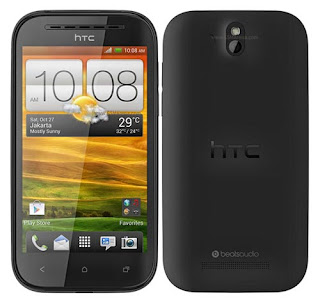
Before using this HTC Desire SV, you have to check the accessories supplied, such as HTC Desire SV smartphone, battery (preinstalled), USB cable, power adapter, 3.5mm stereo headset, quick start guide and safety and regulatory guide.
The HTC Desire SV manual or user guide has been published by HTC at their website (htc.com). The HTC Desire SV user guide is written in PDF document format (182-pages, PDF file, 4.10 MB). For you, the owner of HTC Desire SV smartphone, can download this HTC Desire SV user manual directly to your HTC Desire SV Android smartphone, and read it by using PDF reader application that can be found at Play Store. You can also download this HTC Desire SV owner manual to your desktop PC or laptop, and read it using Adobe Acrobat Reader software. The HTC Desire SV manual provides complete reference information and instructions about operating the HTC Desire SV smartphone correctly. Do not forget to check these supplied accessories inside the box after purchasing this smartphone: HTC Desire SV, battery (preinstalled), power adapter, 3.5mm stereo headset, USB cable, quick start guide, and safety and regulatory guide.
Download HTC Desire SV user manual.pdf (4.10 MB)
Thursday, November 8, 2012
HTC Butterfly Full Spec, quick manual/user guide
HTC Butterfly Full Spec, quick manual/user guide Download Pdf Instruction Setting Troubleshooting - HTC Butterfly is an Android device that comes with a touch screen measuring 5 inches with FullHD resolution of 1920 x 1080 pixels (441ppi).
Butterfly HTC Android OS 4.1 Jelly Bean to support quad core 1.5GHz Krait processor, Adreno 320 GPU, and 2GB of RAM.

HTC Butterfly is also equipped with 16GB of internal memory, an 8 megapixel camera with 1080p HD video recording capabilities, 2.1 megapixel camera, Wi-Fi a / b / g / n, Bluetooth 4.0, A-GPS + Glonass, NFC and 2020mAh capacity battery.
| GENERAL | Network | 2G: GSM 850 / 900 / 1800 / 1900 3G: HSDPA 850 / 2100 Micro SIM |
|---|---|---|
| Announced | 2012, 4Q | |
| Processor | Quad Core 1.5GHz Krait, GPU: Adreno 320 | |
| SAR Rating | ||
| COLOR | Available | Black |
| SIZE | Dimensions (mm) | 143 x 70.5 x 9.1 |
| Weight (g) | 140 | |
| DISPLAY | Type | Super LCD3 capacitive touchscreen, 16M colors |
| Size | 1080 x 1920 pixels, 5.0 inches (441 ppi pixel density), Corning Gorilla Glass 2 | |
| Lines | 0 | |
| Menu | Touchscreen : HTC Sense UI 4+ | |
| DESIGN | Type | Candybar |
| Antenna | Fixed Internal | |
| KEYS | Navigation | Touchscreen : Multitouch |
| QWERTY | No | |
| Soft | ||
| Other | ||
| Lighting | ||
| MEMORY | Phonebook | |
| Internal (MB) | 16 GB (11 GB user available) storage, 2 GB RAM | |
| Expansion | microSD up to 32GB | |
| BATTERY | Type | Standard battery, Li-Po 2020 mAh |
| Stand-by (hrs) | ||
| TalkTime(min) | ||
| RINGTONES | Polyphonic | |
| Customization | Yes | |
| AUDIO | Format | MP3/eAAC+/WMA/WAV |
| MP3 Player | Yes | |
| Voice | ||
| FM Radio | No | |
| A2DP | Yes | |
| VIDEO | Format | DivX/XviD/MP4/H.263/H.264/WMV |
| Recorder | Yes, 1080p@30fps, stereo sound rec., video stabilization | |
| TV | Null | |
| ENTERTAINMENT | Games | Yes, Downloadable |
| MESSAGING | SMS | Yes |
| Total SMS | ||
| MMS | Yes | |
| EMS | Yes | |
| Yes | ||
| IM | ||
| Push-To-Talk | ||
| CONNECTIVITY | HSDPA | Yes, HSPA+; LTE, Cat3, 50 Mbps UL, 100 Mbps DL |
| EDGE | Yes | |
| Bluetooth | Yes, v4.0 | |
| 3G | Yes | |
| GPRS | Yes | |
| Infrared (IrDA) | No | |
| USB Port | Yes | |
| WIFI/WLAN | Yes, Wi-Fi 802.11 a/b/g/n, Wi-Fi Direct, DLNA, Wi-Fi hotspot | |
| Data Cable | Yes | |
| Data Modem | ||
| GPS | Yes | |
| SOFTWARE | Java (J2ME) | No |
| WAP | No Info | |
| Platform OS | Android OS - 4.1 Jelly Bean | |
| Browser | xHTML, HTMIL | |
| Predictive Text Entry | ||
| Speech Codes | ||
| PIM Application | ||
| Others Application | Google Apps, dropbox (25 GB storage) | |
| PERSONAL | Themes | Yes |
| Caller ID | Yes | |
| Profile ID | Yes | |
| CAMERA | Lens Type | CMOS, 8.0 Megapixel |
| Digital zoom | ||
| Max. Resolution | 3264x2448 pixels | |
| Flash | Yes | |
| Night Mode | No | |
| Multi Shot | ||
| Frame | Types | |
| Extra Features | Auto-focus, Simultaneous HD video and image recording, geo-tagging, face and smile detection | |
| Photo Format | JPG | |
| Front Camera | Yes, 2.1 MP, 1080p@30fps |
HTC Butterfly quick manual/user guide
The HTC Butterfly User manual or user guide is not yet available online for this time, it will be available here after the phone released to the market. back here later for check avaliable the user guide availability. Thank's
HTC Desire VC quick manual/user guide
HTC Desire VC quick manual/user guide Download Pdf Instruction Setting - Now HTC Desire VC available user manual / guide for you download link from HTC below, before you download, read a little review HTC Desire VC.
HTC Desire VC Facilities supported dual-sim best-in-class interface, allows users to switch networks in accordance with the conditions and requirements with just one device.
As with other HTC phones, HTC Desire VC is also equipped with Beats Audio technology. With the endorsement of such technology, this phone also presents excellent sound quality equal to the original music. This mobile phone also provides an attractive appearance thanks to a 4 inch screen and HTC Sense UI 4.0.

On the inside, this phone comes with a single-core 1GHz Snapdragon Qualcomm MSM7227A supported by Andreno 200 GPU and 512 MB RAM. This mobile phone also supports 3G network access. Other features such as WiFi, Bluetooth or microUSB are also available on this phone.
This is one of the tips in the guide, and his next can be downloaded at the link below
How to Setting up HTC Desire VC for the first time ?
When you switch on HTC Desire VC for the first time, you’ll be asked to set it up. Just follow the onscreen instructions and you’ll be up and running in no time.
Some features that need to connect to the Internet such as location-based services and auto-sync of your online accounts may incur extra data fees. Don’t worry. You can enable or disable them in Settings later on.
When HTC Desire VC has started, you'll see Quick Tips on some screens (such as the Home screen) that will guide you in using HTC Desire VC. The tips for a screen won't display again after you've closed them.
To view the Quick Tips again, slide the Notifications panel open, and then tap > About > Help > Show all quick tips
Here you are the User Guide PDF Manual Copy / for HTC Desire VC directly from HTC official website. HTC Desire VC user guide in English, Download from the Links below
[Download HTC Desire VC quick manual/user guide]
HTC Desire C quick manual/user guide
HTC Desire C quick manual/user guide Download Pdf Instruction Setting - Now HTC Desire C available user manual / guide for you download link from HTC below, before you download, read a little review HTC Desire C.
HTC Desire Android 4.0 C is the ICS to apply a simple design with a red bandage on the back surface of the casing. Much like One V, this phone will be priced at quite affordable.
HTC Desire C reported to be running an operating system Android 4.0 Ice Cream Sandwich sweetened with Sense 4.0. As for audio, Desire C has pinned Beats Audio technology.

Some of the specifications included in the smartphone, including a 3.5-inch HVGA LCD screen, 600 MHz processor Qualcomm Snapdragon S1, and 512 MB RAM.
HTC Desire also comes with some interesting features, like a 5 MP camera, 4 GB internal memory (plus 25 GB of Dropbox storage for two years), microSD slot, 3G connectivity with HSDPA 7.2 Mbps, Bluetooth 4.0, Wi-Fi, and USB 2.0 . For power supply, HTC Desire C equipped with a battery capacity of 1230 mAh.
This is one of the tips in the guide, and his next can be downloaded at the link below
Do you want some quick guidance on using your phone?
Show Me helps you get the most out of HTC Desire C in seconds.
To open Show Me from the Home screen, tap > Show Me. If you haven't downloaded Show Me content yet, or if there's updated content available, just tap the download link to get it.
Searching Show Me
1. In Show Me, tap , and then enter the words you want to search for.
2. Tap a search result to jump straight to that item.
Show Me helps you get the most out of HTC Desire C in seconds.
- § Need to know how to do something right away? Just type in some keywords and get clear, up-to-date answers right on HTC Desire C.
- § Ever have the feeling that you're not getting the most out of your phone? Browse through the friendly walkthroughs on Show Me to learn how. The topics range from intro to advanced and the Show Me widget even recommends topics that you might like.
To open Show Me from the Home screen, tap > Show Me. If you haven't downloaded Show Me content yet, or if there's updated content available, just tap the download link to get it.
Searching Show Me
1. In Show Me, tap , and then enter the words you want to search for.
2. Tap a search result to jump straight to that item.
Here you are the User Guide PDF Manual Copy / for HTC Desire C directly from HTC official website. HTC Desire C user guide in English, Download from the Links below
[Download HTC Desire C quick manual/user guide]
HTC Desire V quick manual/user guide
Sony Xperia TL quick manual/user guide Download Pdf Instruction Setting - Now Sony Xperia TL LT30at available user manual / guide for you download link from Sony below, before you download, read a little review Sony Xperia TL LT30at.
Advanced Android phone that carries the dual SIM feature is still relatively rare in the market, HTC is trying to take a crack at this segman through new Android phone, HTC Desire V.
HTC makes smartphones is not arbitrary design elegant, and sweet makes users becomes increasingly endearing. HTC Desire V coincidence that we get is white, with an orange strip on the camera.
HTC desire V gives you the freedom in setting the appropriate data plan with quotas, speed and your monthly budget. Because usually you want to keep the old sim-card to stay in touch with colleagues, while other sim-card can support the use of mobile phones in terms of data. The selection of the card slot GSM we also pretty good value considering the CDMA data networks as well as GSM operators yet. HTC Sense 4.0 remains the biggest attraction for Android users who want to feel more than just Ice Cream Sandwich interface.

This is one of the tips in the guide, and his next can be downloaded at the link below
Getting to know your settings
Want to change the ringtone, set up a Wi-Fi® connection or make the screen brighter? Do this and more in Settings. Slide the Notifications panel open, and then tap . Here are some of the basic settings you can change:
How long the battery can last before it needs recharging depends on how you use HTC Desire V. The features and accessories you use can affect battery life.
You can get the battery to last longer by following a few simple tips:
Want to change the ringtone, set up a Wi-Fi® connection or make the screen brighter? Do this and more in Settings. Slide the Notifications panel open, and then tap . Here are some of the basic settings you can change:
- Tap the On/Off switch next to an item such as Wi-Fi to turn it on or off. Tap the item itself to configure its settings.
- Tap Sound to set a ringtone, choose a sound profile, and configure incoming call sound settings.
- Tap Display (or Display & gestures) to change the screen brightness or set how long the screen is idle before going to sleep.
- Tap Security to set a screen or SIM card lock.
How long the battery can last before it needs recharging depends on how you use HTC Desire V. The features and accessories you use can affect battery life.
You can get the battery to last longer by following a few simple tips:
- § Turn off the display when you're not using it
- § Lower the volume
- § Close battery-intensive programs, such as the Camera, when you're done using them
- § Make sure apps are closed and not continuously running in the background
Here you are the User Guide PDF Manual Copy / for HTC Desire V directly from HTC official website. HTC Desire V user guide in English, Download from the Links below
[Download HTC Desire V quick manual/user guide]
Wednesday, November 7, 2012
HTC One XL quick manual/user guide
HTC One XL quick manual/user guide Download Pdf Instruction Setting - Now HTC One XL available user manual / guide for you download link from HTC below, before you download, read a little review HTC One XL.
HTC One XL is one of a family of variants of HTC ane X, The design is very similar to the HTC One X. Name itself comes from the One XL Code "L" meaning HTC One XL has supported LTE network technology. HTC Screen One XL-sized 4.7-inch IPS type LCD2 capacitive touchscreen resolution of 720 x 1280 pixels.
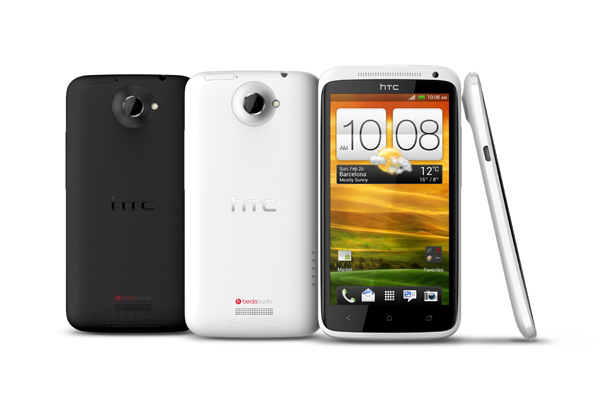
On the back of the phone is embedded 8MP camera 3264 × 2448 pixels with autofocus, LED flash Simultaneous HD video, geo-tagging, and face and smile detection. HTC One XL using the Android 4.0 Ice Cream Sandwich as the operating system supported dual core processor with a speed of 1.5GHz and 1GB RAM
This is one of the tips in the guide, and his next can be downloaded at the link below:
Transferring contacts from your old phone through Bluetooth
Depending on the capabilities of your old phone, the Transfer app may be able to transfer not only contacts but also other data such as calendar events and text messages to HTC One XL.
1. From the Home screen, tap > Transfer.
2. Tap Next to begin.
3. Choose your old phone's name and model.
4. On your old phone, turn Bluetooth on and set it to discoverable mode.
5. Follow the onscreen instructions on your old phone and HTC One XL to pairthem.
6. Choose the types of data to transfer:
§ If you selected Contacts and Calendar, you can choose whether to transfer them to the phone or to an account you're signed into (such as Exchange ActiveSync).§ If you're transferring data from the HTC One series (or newer phones), you can also select SMS, Bookmark, and Task. These data types can only be transferred locally to HTC One XL.
7. Wait for the data transfer to finish
Getting photos, videos, and music on or off HTC One XL
There are two ways you can transfer your media.
§ Connect HTC One XL to your computer. Your computer will recognize it just like any removable USB drive, and you can copy your media between them.
§ Download and use our HTC Sync Manager software. You can easily set it up to sync folders containing media and playlists on your computer with HTC One XL. HTC Sync Manager can also automatically get photos and videos off HTC One XL to your computer. For details, see HTC Sync Manager on page 101.
Tired of transferring your media every time you change to a new phone? Use online storage services to put your media in one place so you can access them anywhere — on your computer, HTC One XL, and other mobile devices.
Check first what online storage accounts are available on HTC One XL and sign in to the one you want to use. To sign in to an account, slide the Notifications panel open, and then tap > Accounts & sync > . Use the Gallery app to access media in your online storage
Here you are the User Guide PDF Manual Copy / for HTC One XL directly from HTC official website. HTC One XL user guide in English, Download from the Links below
[Download Quick start guide 229 Kb PDF]
[Download User manual 3.51 Mb PDF]
[Download Safety guide 1.27 Mb PDF]
Subscribe to:
Posts (Atom)